

How To Cast IPTV Smarters Pro To Your Smart TV
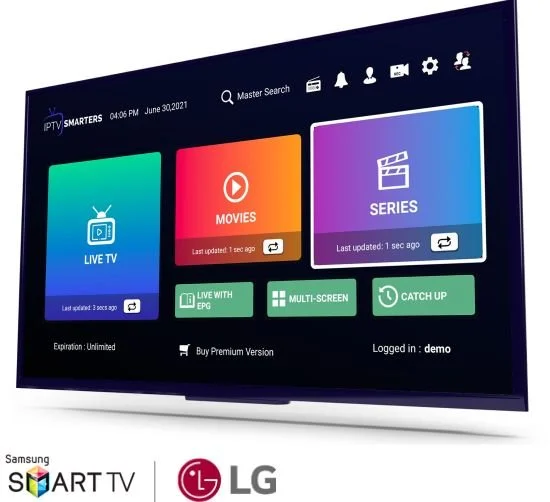
IPTV (Internet Protocol Television) has revolutionized the way we consume media, allowing us to access a wide variety of channels and on-demand content without the constraints of traditional cable. IPTV Smarters Pro is one of the most popular applications for streaming IPTV content, seamlessly integrating various services into an easy-to-use interface. If you want to enjoy IPTV Smarters Pro on a bigger screen, casting it to your Smart TV can enhance your viewing experience significantly. Here’s a step-by-step guide on how to do just that.
What You Need
Before you begin, ensure you have the following:
- A Smart TV – Make sure your TV is compatible with screen mirroring or casting features.
- A stable internet connection – For a smooth streaming experience, confirm that both your Smart TV and the device you’re casting from are connected to the same Wi-Fi network.
- IPTV Smarters Pro – Install the IPTV Smarters Pro app on your mobile device (available for both Android and iOS).
Step-by-Step Guide to Casting IPTV Smarters Pro
Step 1: Set Up Your Smart TV
- Power on your Smart TV and navigate to your settings.
- Look for the Screen Mirroring or Casting feature, which is typically found in the display or network settings. Enable it if it’s not already activated.
Step 2: Prepare Your Device
- Open the IPTV Smarters Pro app on your smartphone or tablet.
- Log in with your IPTV service credentials to access your channels and content.
Step 3: Cast to Your Smart TV
For Android Devices:
- Swipe down from the top of your Android device’s screen to access the Quick Settings menu.
- Look for the Cast option (may be referred to as Smart View, Screen Mirroring, etc.) and tap on it.
- Select your Smart TV from the list of available devices.
- Your device will now connect to your TV, and the screen should be mirrored.
For iOS Devices:
- Open the Control Center by swiping down from the upper-right corner of your screen (iPhone X and later) or swiping up from the bottom (iPhone 8 and earlier).
- Tap on Screen Mirroring and select your Smart TV from the available devices.
- Enter the AirPlay code if prompted (this may appear on your TV screen).
Step 4: Enjoy Your IPTV Content
Once connected, your smartphone or tablet screen will appear on your Smart TV. Open IPTV Smarters Pro and navigate to your desired content. Enjoy watching live TV channels, movies, and shows on your Smart TV.
Troubleshooting Tips
If you encounter any issues while casting, here are a few tips to resolve common problems:
- Check Connectivity: Ensure both devices are on the same Wi-Fi network.
- Restart Devices: Reboot your Smart TV and the smartphone or tablet to reset connections.
- Update Software: Ensure your Smart TV firmware and the IPTV Smarters Pro app are up to date.
- Check for Interference: Move closer to the Wi-Fi router or eliminate potential interference from other devices.
Conclusion
Casting IPTV Smarters Pro to your Smart TV is a simple process that allows you to enjoy your favorite IPTV content on a larger screen. By following these steps, you can maximize your entertainment experience and make the most of your IPTV service. With the right setup and a few clicks, you’ll be ready for movie nights, binge-watching sessions, and more—all from the comfort of your living room.